This week members shared their image processing hints and tips, revealed how to make some special effects or brought in questions to be answered. Here are some highlights from the discussion.
Removing unwanted objects.
Quiet often an image will lose marks because of a distraction in the background or a bright spot near the edge. The easiest way to remove the distractions is to crop the image, but what if you can’t? If cropping the image would remove something important, the other way to remove distractions is to used the “patch”, “clone stamp” and “healing brush” tools in Photoshop. The patch tool is great for removing distracting objects against a plain background (such as sky, grass or water). Look for the tool that looks like a sewn patch as shown here.
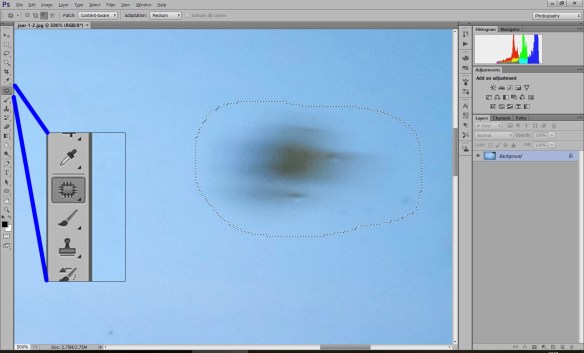
Make a selection around the object you want to remove, click in the middle and drag the patch somewhere else in the plain background. When you release the mouse the object will be removed. If your background has a pattern, such as waves or stripes, line up the pattern as best you can before releasing the mouse. Hint: You can remove a large or oddly-shaped area by patching it a bit at a time.
The clone stamp tool can be used for trickier patching jobs, like the image below. Select the tool looking like an ink stamp. Move the tool to an area you would like to copy and click while pressing the ALT key. Then move the tool to the place you would like to erase, line up the edges and start painting.
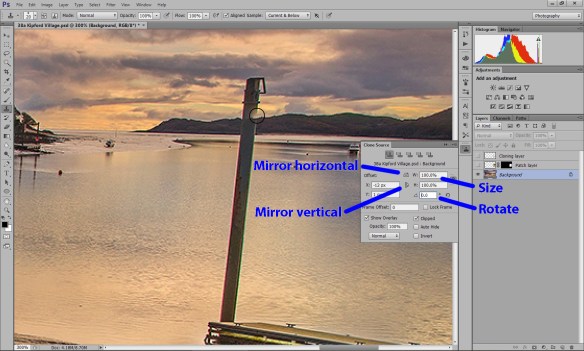
The “clone source” window (above) can help you to match the edges. If you are copying the top of the mountain but it is at the wrong angle, try changing the rotation. If you are cloning a background with a gradient, use the “Mirror horizontal” button to flip the gradient so your painted strokes don’t leave a sharp edge. Here are some more cloning hints:
- After cloning, go over the same area with the healing brush to smooth over the edges and remove artefacts. Look for discontinuities and unnatural straight edges.
- Try to clone from many different sources to avoid creating repeating patterns. When you have finished, look for duplicated objects and similar patterns and change the duplicates by passing the healing brush over them.
Local Tone Corrections
We have all been told to use the “brightness”, “levels” or “curves” tools in Photoshop to adjust the brightness and contrast, but what if your image only needs a partial correction? “camera raw” comes with a selection of very useful adjustment tools. The first is the “gradient tool”, shown below. First select the adjustment you would like to make (in this case a reduction in exposure and darkening the highlights) and then sweep with the mouse away from the part you would like adjusted (in this image from bottom to top). The adjustment darkens the foreground highlights.

The second is the “adjustment brush” shown below. This tool uses exactly the same sliders as the gradient tool, only this time you can paint the adjustment anywhere on the image. Ticking the “auto mask” box prevents the adjustment accidentally leaking across a sharp edge. Hovering the mouse over the point reveals which parts of the image have been painted over (as shown below in red).
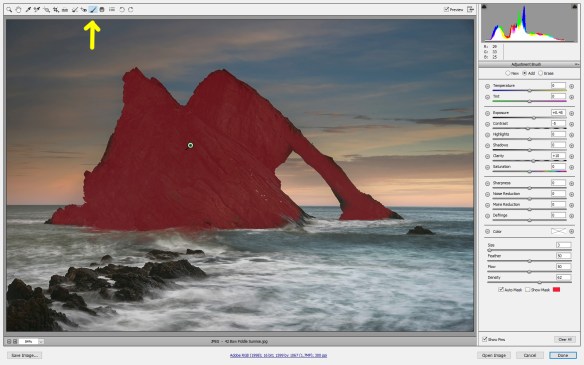
This adjustment is particularly useful for brightening the faces in a portrait or for darkening bright distractions near the edge of an image. The secret is to make only small adjustments so your image still looks natural. You can change the adjustment at any time.
Content Aware Scale
The content aware scale is a little used Photoshop utility (which has been available since CS4) but its results can be absolutely magic. It is ideal for compositions with several subjects spaced out against a plain background. If you would like to bring the subjects closer together, or to change the aspect ratio of the image without cropping it, a content aware scale may work for you. First select the part of the image you would like to scale with a rectangular box (or use “select all”). Then select “Edit/Content Aware Scale” as shown below.
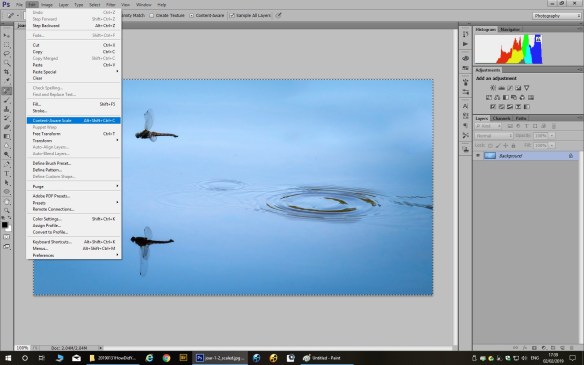
Now move the edges of your image inwards and watch the magic happen. Look carefully and make sure non of the main subjects are compressed by the effect. The vacated parts will be filled with background colour, but you can remove them with a crop.
Correcting Horizontals and Verticals
One member asked how to correct an image where the main subject is tilted at a strange angle. There are alternative two ways of doing this. The first and simplest method is to rotate the image and crop it. This method is best used for an image, such as a seascape, where the horizon is tilted or an image, like the one below, where an object which should be vertical (the church tower) is leaning to one side.
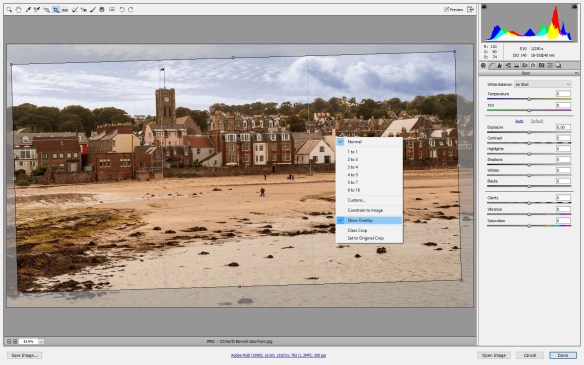
The example shows the crop tool in “camera raw”. Right-click on the image and ensure that “Show overlay” is ticked. Move the mouse outside the crop area and drag the edges to rotate the crop until the overlaid lines match up with the horizontals and verticals in the image.
If your image is more complicated, such as an architectural shot, the second method is to use the lens correction filter, as shown below. The “camera raw” lens correction filter is easier to use. Click on the tool which looks like a lens schematic “()()”. The “rotate” slider rotates the image, just as before. Use this slider to line up the horizontals and verticals in the centre of the image. The “vertical” and “horizontal” sliders can be used to correct the horizontals and verticals at the edge of your image. (The “distortion” slider can be used to straighten lines if your shot is taken with a wide angle lens.)
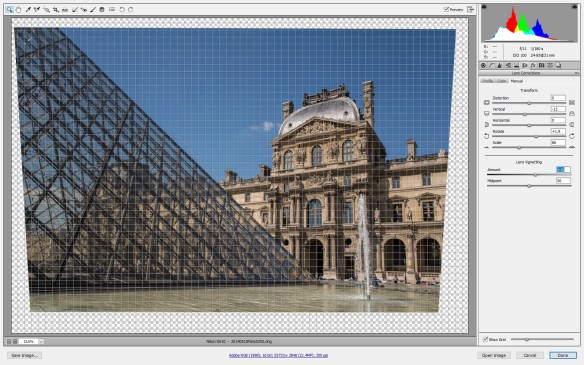
The lens correction filter in Photoshop itself has the same controls, but the “rotate” control is very fiddly to use.
After using the lens correction filter you will need to crop the image. If the sloping edges mean you lose something important outside the crop, it is possible to crop slightly outside the boundary and use a “Content Aware Fill” (available from CS6 onwards) to fill the missing parts. You should treat this fill like a clone and repair any odd-looking artefacts with the healing brush.
Don’t Make The Mistake I Made
Here is an image showing a mistake I made when creating a black and white image. The black and white conversion tool in Photoshop can be used to convert a colour image to black and white. The tool lets you adjust the colour sliders, or apply one of a number of presets, until you get the effect you want. Sometimes you will find different conversions work better in different parts of the scene. In the image below I applied two different black and white conversions to the bottom and the top of the image.
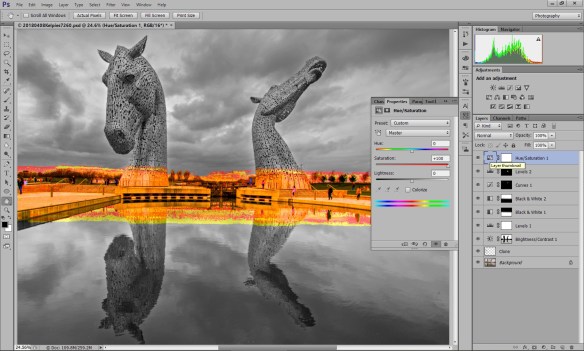
The mistake I made? The opacities of the two conversion layers don’t add up to 100%! Right in the middle there is a patch which looks black and white but actually has a tiny hint of colour. The mistake is revealed by boosting the saturation. To ensure you never make this mistake, always add a black and white conversion or desaturation layer which acts on the whole image.
Solarization Effect
Finally, here is a special effect you can try on an image with boring highlights, such as a blank and uninteresting sky. Applying a curves adjustment in the shape of an upside down “U” will create a solarization effect in which the dark parts of the image are shown in positive and the lighter parts are shown in negative.
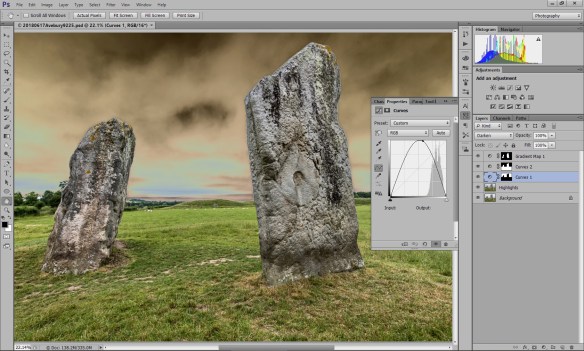
You can vary the effect by dragging the top of the curve left or right, and you can use a layer mask to confine the effect to just part of your image. For example, the mask in the above image prevents the effect changing the white parts of the stones.
I hope these hints and tips will help members to adjust their images or have some fun with the special effects.
 Musselburgh Camera Club
You must be logged in to post a comment.